Delta Executor troubleshooting
Delta Executor Upgrade Error
The Delta Executor Roblox upgrade error means the installed Roblox client, the available Delta build, or both no longer match. Update Roblox through its normal app-store route, check Delta’s compatibility status, and install a newer Delta release only when one is published. If compatibility has not returned, waiting is the correct fix.
What Does the Delta Executor Upgrade Error Mean?
The message blocks a session because the software versions expected by Roblox and Delta do not line up. The wording can appear as “Please Upgrade,” “your version of Roblox may be outdated,” “update your client to continue,” or Error Code 280.
The message alone does not prove that the Delta installation is damaged. When Delta worked before a Roblox update and failed immediately afterward, a compatibility gap is the first branch to check.
Which Update Problem Do You Have?
Identify which of 3 states applies before deleting files or reinstalling the same package.
| State | What you see | Correct response |
|---|---|---|
| Roblox is outdated | The standard Roblox client also requests an update | Update Roblox through Google Play, the App Store, or its normal desktop updater |
| Delta lacks compatibility | Standard Roblox opens, but Delta fails after a Roblox update | Check status and wait for a compatible Delta release |
| Local installation is damaged | A compatible release exists, but one device still fails after a complete restart | Replace the local package using the current release owner |
This separation matters. Updating Roblox cannot repair Delta compatibility, and reinstalling the same Delta build cannot turn it into a newer compatible build.
How Do You Fix the Roblox Upgrade Error Safely?
Use this order because each step answers a different diagnostic question.
- Open the standard Roblox client. If Roblox itself requests an update, complete that update through the platform’s normal channel.
- Restart the device. A restart closes the old client process and reloads the updated installation.
- Check the current package record. Confirm that the listed release supports the platform involved before reinstalling.
- Check the current Delta Executor release. Install it only when the download owner lists a release for the affected platform. Do not substitute a version number copied from another page.
- Test once. If the same message returns while status still shows a compatibility interruption, stop. Repeated launches and reinstalls cannot produce a missing patch.
Use the normal Roblox client while compatibility remains unavailable. That keeps the device usable without forcing a downgrade or unknown package.
Why Does the Error Remain After Updating Roblox?
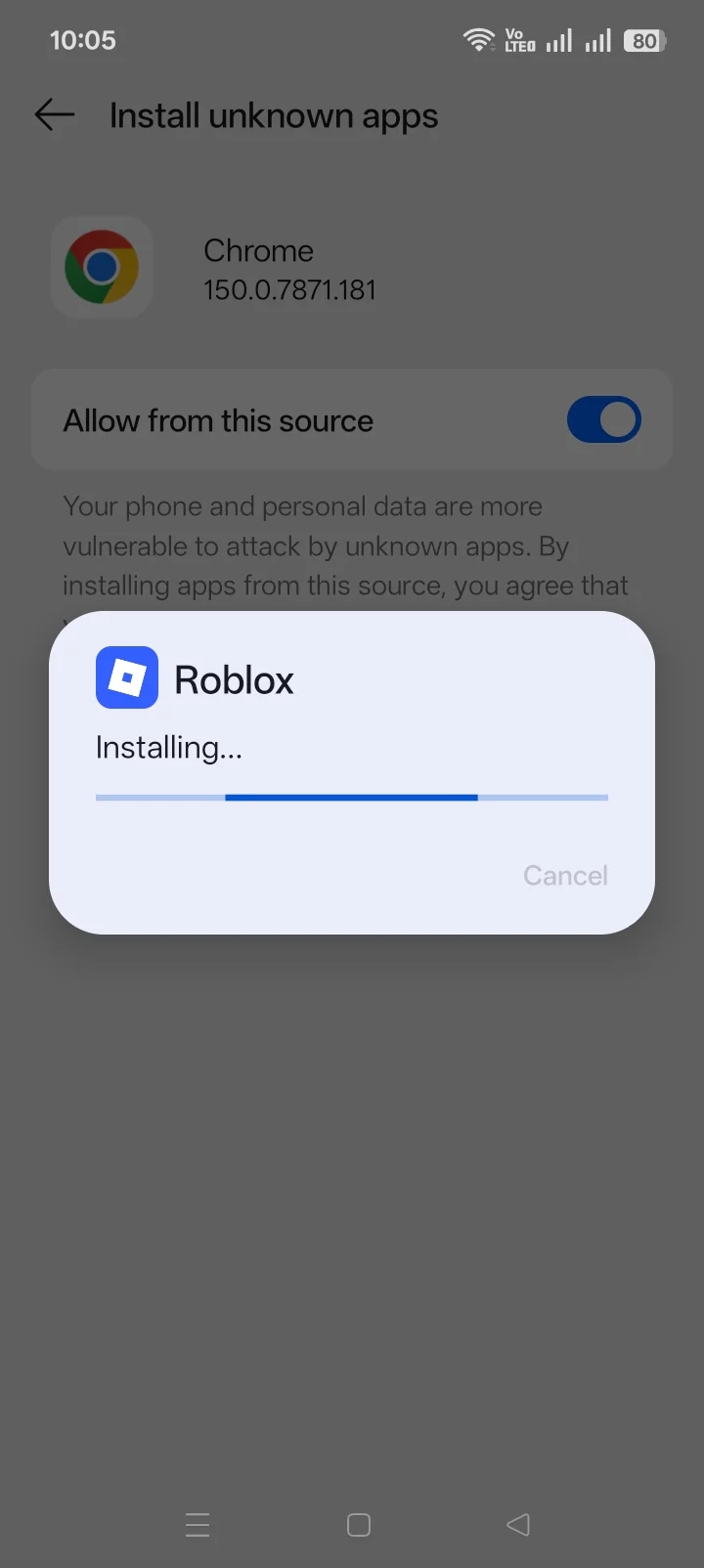
Updating Roblox solves only the first state. A fresh Roblox client can still reject or fail beside a Delta build made for an earlier client. That result means the local Roblox update succeeded but Delta compatibility has not caught up.
No universal recovery window exists. Fixed claims such as “12–24 hours” cannot account for platform, signing, distribution, or the size of a Roblox client change. The current package record must identify a compatible release; if none is listed, stop retrying.
When Does Reinstalling Delta Help?
Reinstallation helps only after a compatible release exists and the local copy is incomplete, damaged, or left over from an older package. Confirm the compatible release first, then replace the installed copy once.
If every affected device shows the same upgrade message, treat the problem as compatibility or service state rather than simultaneous local corruption. A second reinstall of the same file adds no new information.
Which Upgrade-Error Fixes Should You Reject?
Reject fixes that trade device security for a temporary launch. Keep antivirus and Play Protect enabled. Do not restore an unknown DLL, install a certificate from an unknown source, or grant administrator access to an unverified executable.
Do not install old Roblox bundles, intercept update traffic, change client-version checks, or use an anti-cheat bypass. A forced downgrade can expose the device to altered files and still fail when Roblox requires a newer client.
Also reject pages that publish a precise “compatible” version without linking that value to the current file owner. Version numbers copied across pages become stale and send readers back into the same mismatch.
How Do You Know a Compatible Delta Update Is Available?
A compatible update is available when the platform state changes on the download owner and the download owner lists the corresponding current release. One signal without the other is not enough: a new file does not prove compatibility, and a status claim without an identified release gives the device nothing to install.
Return to Delta Executor after the issue is resolved for the correct platform route.
Delta Executor Upgrade Error FAQ
Is Error Code 280 always a Delta problem?
No. Error 280 can appear when the standard Roblox client is outdated. Test standard Roblox first; if it also requests an update, update Roblox through its normal channel.
Why does Delta still say “upgrade” after reinstalling?
The reinstalled package can be the same incompatible build. Reinstallation changes local files; it does not create compatibility with a newer Roblox client.
Should Roblox be downgraded to match Delta?
No. Do not install old client bundles or block Roblox updates. Wait for a compatible Delta release or use the standard current Roblox client.
Does clearing cache fix the upgrade error?
Cache clearing can remove stale local data, but it cannot repair a real client-version mismatch. Check platform status before clearing or reinstalling anything.